Frequently Asked Questions

How to search content?

You can search content: using the catalogue search on the home page:   The site will suggest the authors and product titles related to your keyword:   choosing a product type or topic from the mega menu:   filtering the results on th

You can search content:

  • using the catalogue search on the home page:

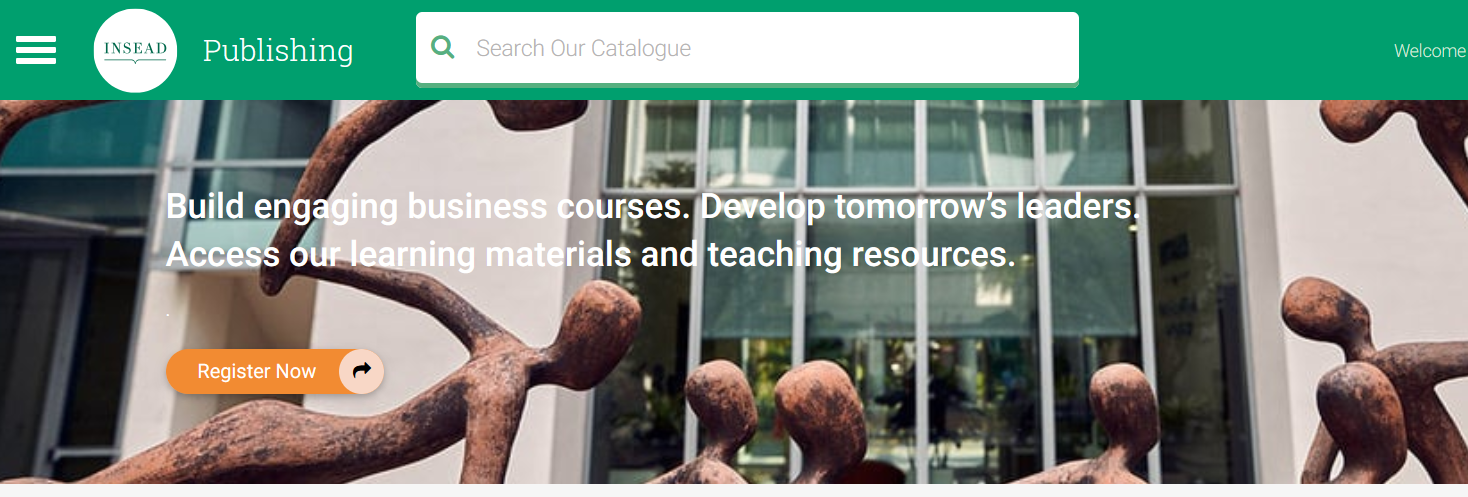
search our catalogue


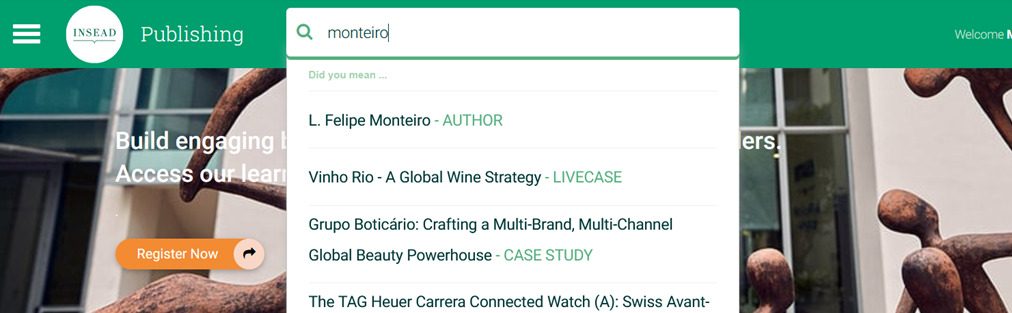
The site will suggest the authors and product titles related to your keyword:

Keyword search


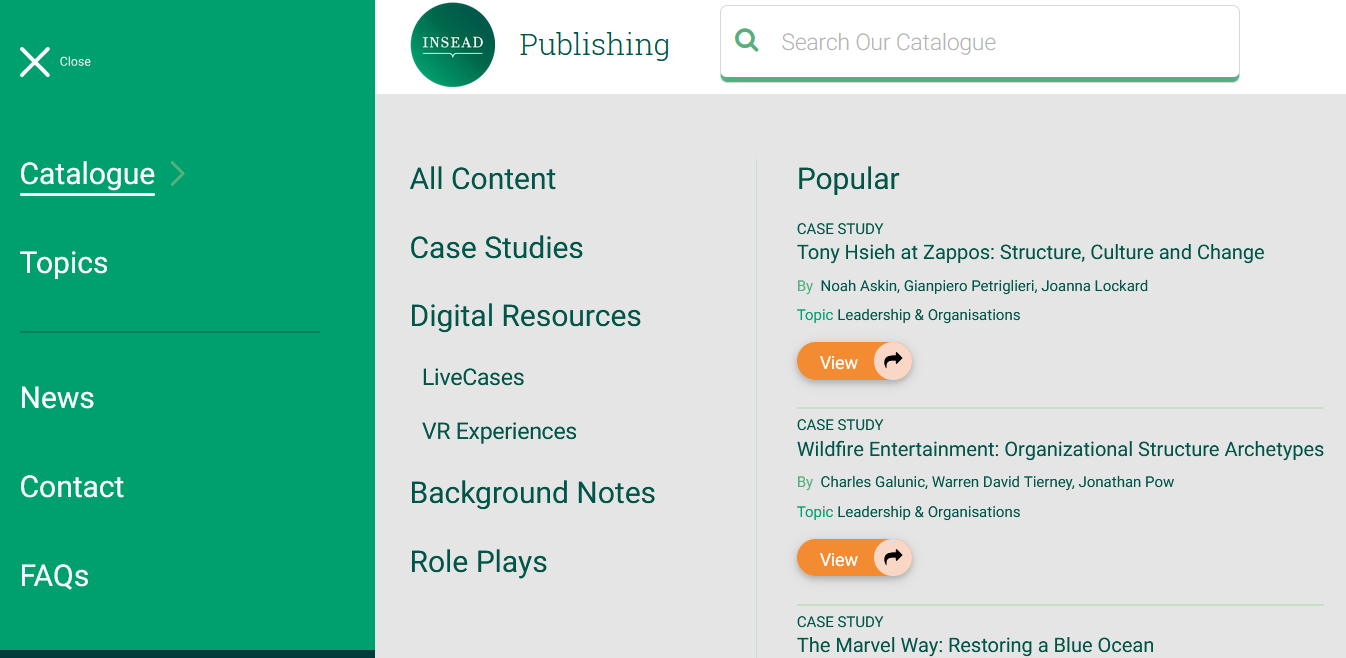
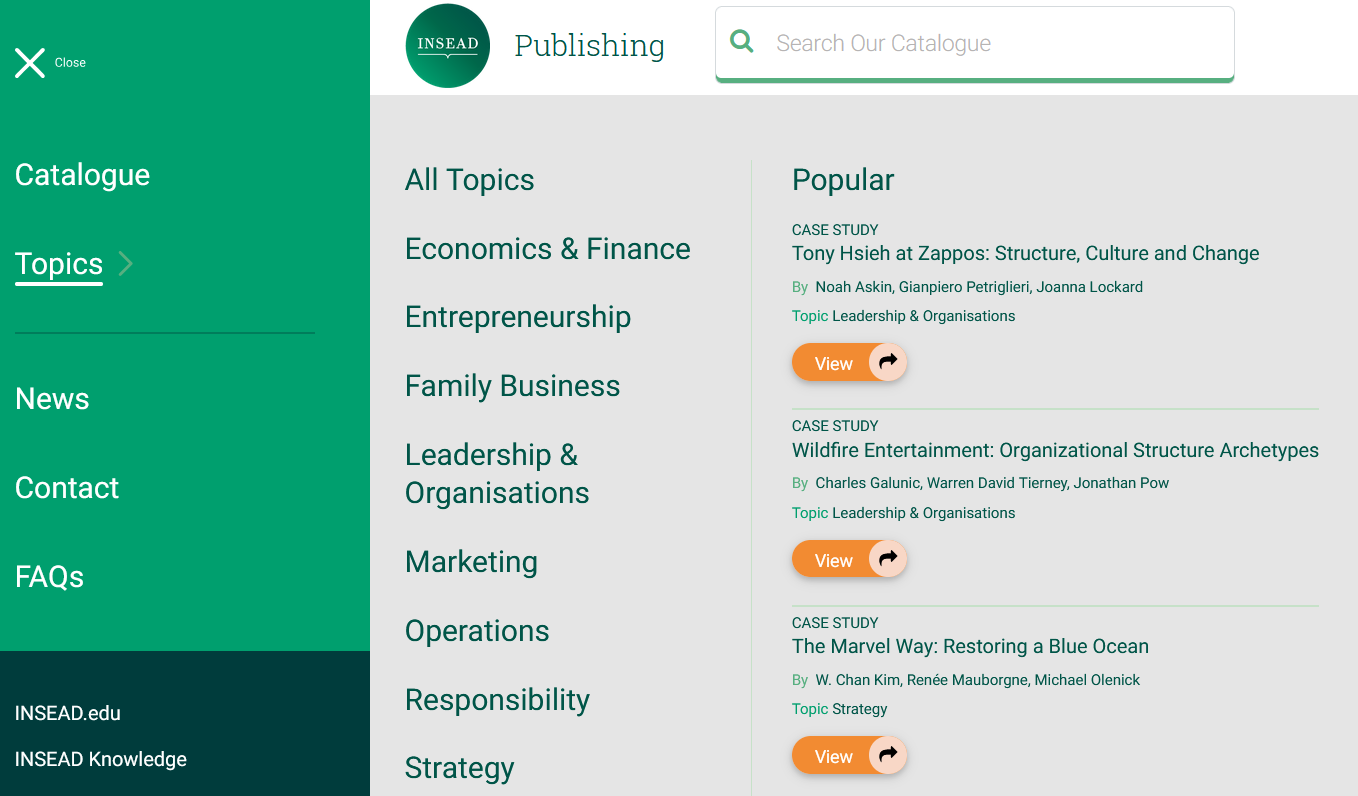
  • choosing a product type or topic from the mega menu:

Mega menu - Catalogue


Mega menu - Topics

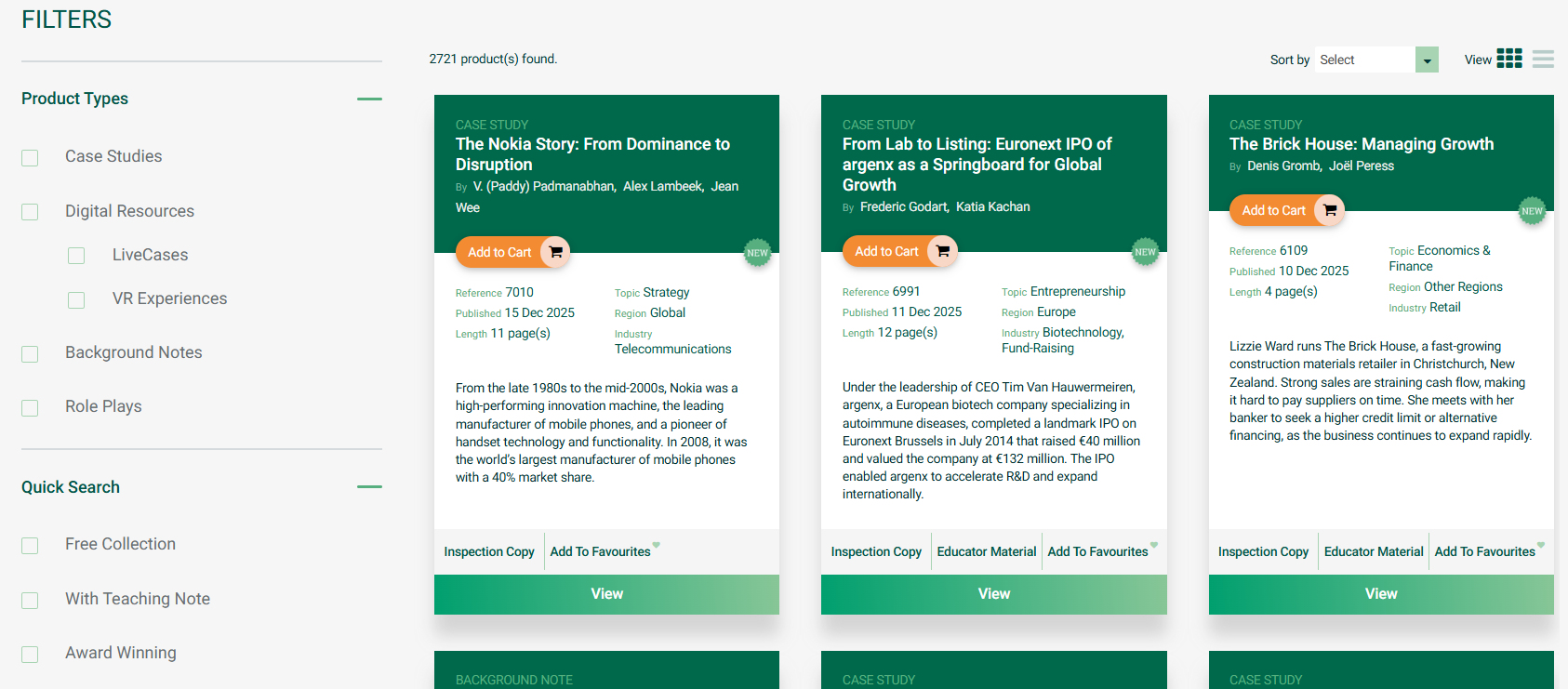
  • filtering the results on the Search page:

Search page

What is an inspection copy?

Inspection copies are single copies not suitable for teaching in the classroom. They are used by educators to assess the suitability of the selected content for the classroom. Inspection copies are not for classroom use as indicated on the watermark printed

Inspection copies are single copies not suitable for teaching in the classroom. They are used by educators to assess the suitability of the selected content for the classroom. Inspection copies are not for classroom use as indicated on the watermark printed on each page.

Can I reproduce an inspection copy?

Inspection copies are not for classroom use. They cannot be copied, stored, transmitted, translated, reproduced or distributed in any form or medium.

How can I access inspection copies or/and teaching notes?

Inspection copies are provided for free to verified educators and higher education support staff. Please create an account, select the right educational status, and after verification (please allow for 2-3 business days) you will receive a confirmation emai
Inspection copies are provided for free to verified educators and higher education support staff. Please create an account, select the right educational status, and after verification (please allow for 2-3 business days) you will receive a confirmation email. For more information check the “Manage my account” section.

How can I order a master copy to be taught in my course?

You must be registered and logged in to order online. Once you have found the product you want to purchase, click on Add to Cart and proceed to checkout. For more information check the “Ordering information” section.

How can I share a case study with my colleagues?

You can share a product with your peers by using the “Share Link” button. This will copy the url of the case that you can paste in an email to your colleagues.

What is «My Favourites»?

If you are interested in saving a product for later, click on “Add to Favourites” and create your list of your preferred products. This can be used to create the list of materials you use for a specific course giving you an easy way to retrieve them for nex

If you are interested in saving a product for later, click on “Add to Favourites” and create your list of your preferred products. This can be used to create the list of materials you use for a specific course giving you an easy way to retrieve them for next time.

What is a Case Study?

A case study is a description of a management situation that can be real or hypothetical. Mirroring INSEAD’s vocation as 'the business school for the world', our case collection is remarkable for its richness and diversity, providing lessons in learning fro

A case study is a description of a management situation that can be real or hypothetical.

Mirroring INSEAD’s vocation as 'the business school for the world', our case collection is remarkable for its richness and diversity, providing lessons in learning from a vast number of countries and cultures. Cases not only stimulate class discussion, they put the student in the shoes of the decision maker seeking answers to today’s burning management issues and challenges. They offer insight into the successes and failures that characterize every firm and venture, distilling wisdom that can be practically applied in the business world. Up to 100 new cases are added to the collection annually, authored by faculty and research staff who have privileged access to industry executives, entrepreneurs and experts willing to share their experience.

What is a Case with Extra?

The case authors create additional support material for some INSEAD cases that we make available directly on the page with the case description on the Publishing website. On these pages, instructors can download additional teaching material including teachi

The case authors create additional support material for some INSEAD cases that we make available directly on the page with the case description on the Publishing website. On these pages, instructors can download additional teaching material including teaching notes, video ads and interviews, powerpoint presentations, excel spreadsheets, videos of professors teaching the case at INSEAD etc. Most of these cases have a restricted section for instructors only. There are also some cases with support material available for students.

Check the list on all cases with Extra material on this page.

What is a Popular Case?

The popularity of a case study is based on its adoption and interest.  They are flagged as Popular on the website and a specific filter can be applied to find them.

In how many languages?

All original cases are written in English. Some of them are translated into Spanish, Portuguese, French, Chinese, Japanese, Korean, and Russian. To request permission to translate INSEAD cases for distribution as classroom/training handouts please contact c

All original cases are written in English. Some of them are translated into Spanish, Portuguese, French, Chinese, Japanese, Korean, and Russian.

To request permission to translate INSEAD cases for distribution as classroom/training handouts please contact [email protected]. Note that INSEAD retains copyright of translated material.

How to request a reprint or translation permission of INSEAD case material?

Reprints or Translations of INSEAD case studies are subject to permission.  Please contact [email protected] to request permission to republish an INSEAD Case in a textbook or other publication. We do not allow any adaptation, edit, excerpt, or s

Reprints or Translations of INSEAD case studies are subject to permission. 

Please contact [email protected] to request permission to republish an INSEAD Case in a textbook or other publication. We do not allow any adaptation, edit, excerpt, or summary of any case; a case must be republished in full.

To request permission to translate INSEAD cases for distribution as classroom/training handouts please contact [email protected]. Note that INSEAD retains copyright of translated material.

Can I submit my case study at INSEAD?

INSEAD publishes material authored by INSEAD faculty only. We do not publish external authors.

Can my library add INSEAD case studies in its permanent collection?

The libraries are not authorised to add INSEAD cases in their permanent collection available for students. Case material must be ordered separately for every course in which it is used. Check section ordering for teaching purpose.

Where can I order INSEAD case studies?

Apart from this website INSEAD case studies can be purchased through our distributors’ websites: Case Centre CCMP Harvard Business Publishing study.net XanEdu Spanish and Portuguese case translations are also available at IESE Publishing. Japanese case tr

Apart from this website INSEAD case studies can be purchased through our distributors’ websites:

Spanish and Portuguese case translations are also available at IESE Publishing.

Japanese case translations can be ordered at Case Center Japan.

How to sign up on the website?

You can fill in and submit a registration form on the Account Signup page.

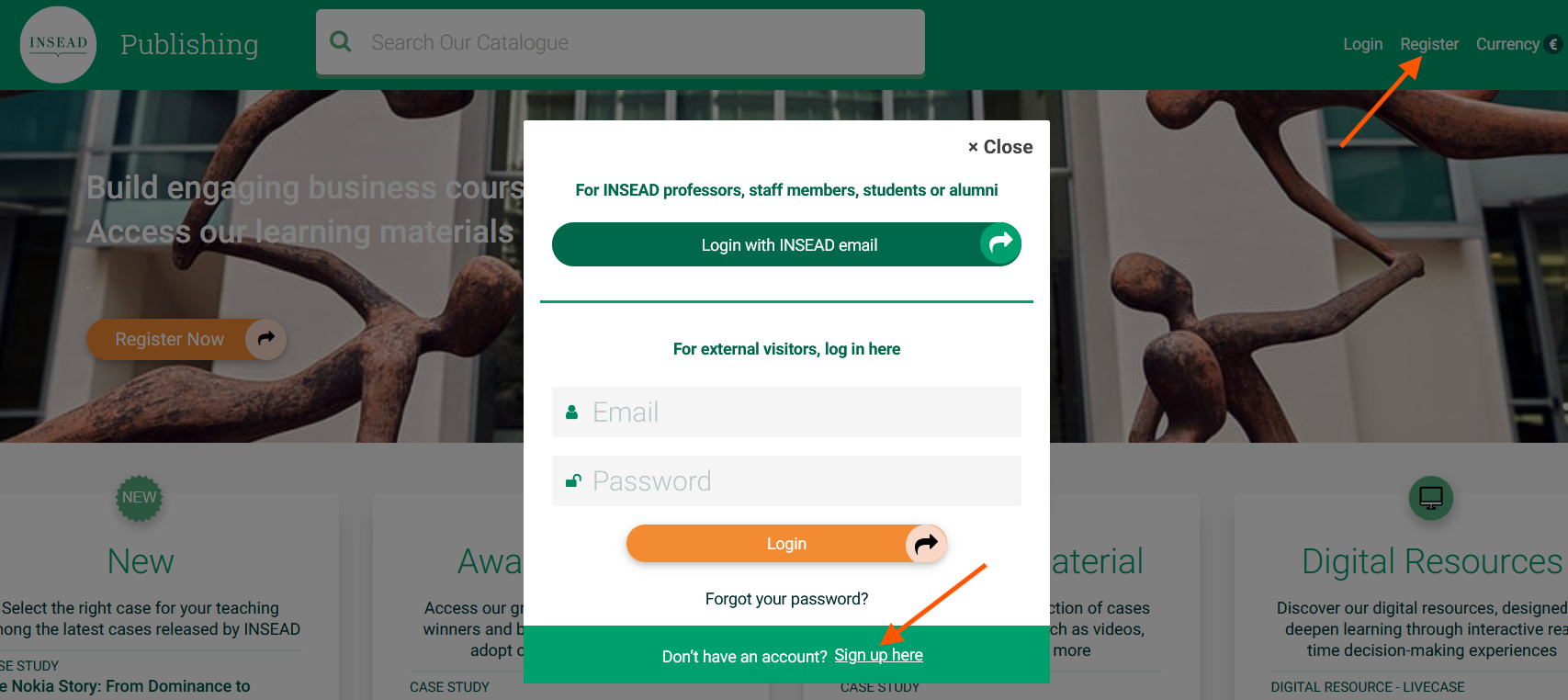
To access this page, you should either click on Register on the navigation bar or click on Login and then select Sign up here in the login pop-up.

Registration buttons

What is the educational status?

Your educational status is the first field you complete when creating an account, and it is one of the most important. It determines your level of access to certain content and functionalities on INSEAD Publishing. Select the status that the best matches yo

Your educational status is the first field you complete when creating an account, and it is one of the most important. It determines your level of access to certain content and functionalities on INSEAD Publishing. Select the status that the best matches your academic profile:

  • Educator
  • PhD Student with Teaching Responsibility
  • Research Staff
  • Higher Education Staff
  • Student
  • Other

To be granted Educator status, please provide the URL to your official online profile (e.g. university or institutional page). This helps us validate your account faster. Any status requested will only be granted after verification by the INSEAD Publishing team. Please allow up to 3 working days for account activation.

How can I update my account information?

You can update your educational profile, name, billing address, school information and preferences on the My Account page.  Click Edit Account on the bottom of this page. Update your details and save your changes.  Please note that all changes t

You can update your educational profile, name, billing address, school information and preferences on the My Account page. 

  • Click Edit Account on the bottom of this page.
  • Update your details and save your changes. 

Please note that all changes to your educational profile require approval by the INSEAD Publishing team and may take up to 3 working days to process. All other updates will be applied immediately upon saving.

To replace your email address, please send your request to [email protected].

How can I order a master copy to be taught in my course?

You must be registered and logged in to order online. Once you have found the product you want to purchase, click on "Add to Cart" and proceed to checkout. All purchased material is available for download on the page "My Orders".

What is the difference between teaching/training license and personal/research license?

Personal/research license cannot be used for classroom use. This license is an individual license immediate consumption. As an Educator/Instructor, you should select the teaching/training license, fill in all the fields relative to your course and enter the

Personal/research license cannot be used for classroom use. This license is an individual license immediate consumption.

As an Educator/Instructor, you should select the teaching/training license, fill in all the fields relative to your course and enter the number of participants/students in your course in the field “Quantity”. The minimum of 5 copies is required for the teaching and training purposes.

How long are purchased cases available for download?

The download availability of your purchased cases studies depends on the license type you selected: Individual or research license: Cases purchased for personal or research use can be downloaded for 30 days from the purchase date Teaching or training licen

The download availability of your purchased cases studies depends on the license type you selected:

  • Individual or research license: Cases purchased for personal or research use can be downloaded for 30 days from the purchase date
  • Teaching or training license: Cases purchased for teaching and training purposes can be downloaded until the end date of your course/ training. You specify this end date on the Cart page when you provide your course/ training details.

After the expiration date, you won’t be able to download the document anymore. Please make sure to download your purchased materials before the expiration date.

Can my order be refunded?

You have the right to withdraw from your transaction without charge and without giving any reason until delivery of the product has started. Customised electronic copies are delivered immediately after your order is submitted and they can’t be returned

You have the right to withdraw from your transaction without charge and without giving any reason until delivery of the product has started. Customised electronic copies are delivered immediately after your order is submitted and they can’t be returned.

All sales of digital content are final. We do not accept return of digital content.


What type of purchase will I make (B2C or B2B)?

All purchases of teaching/ training licenses are automatically considered as B2B (Business to Business) order. For purchases of personal/ research licenses, the default option is B2C (Business to Customer). If you need to purchase personal/ research license

All purchases of teaching/ training licenses are automatically considered as B2B (Business to Business) order.

For purchases of personal/ research licenses, the default option is B2C (Business to Customer). If you need to purchase personal/ research license for work, you can select “Professional expenses?” on the Cart page placing your order.

For all B2B purchases, you will be required to enter your Company name on the Checkout page and it will appear on the invoice. You can provide your Tax Registration Number or VAT on the Check Out page.

Where can I provide my company EU VAT number?

For companies in the EU, please provide your VAT number on the Checkout page in the Billing Information section. If the VAT number is valid the country tax will not be applied to your order. If the section is left empty or the VAT number is not valid, the c

For companies in the EU, please provide your VAT number on the Checkout page in the Billing Information section. If the VAT number is valid the country tax will not be applied to your order. If the section is left empty or the VAT number is not valid, the country tax will be applied to the order.

Please note that it is the responsibility of the client to provide a valid VAT number when placing the order, and we can’t intervene in this process.

Can I order a teaching note?

Teaching notes are not available for purchase. They are provided free of charge to registered educators and PhD students as support for teaching.  To access teaching notes: Create an account on INSEAD Publishing. Select the correct educational status

Teaching notes are not available for purchase. They are provided free of charge to registered educators and PhD students as support for teaching. 

To access teaching notes:

  • Create an account on INSEAD Publishing.
  • Select the correct educational status during registration.
  • After verification (please allow for 2-3 business days), you will receive a confirmation email.
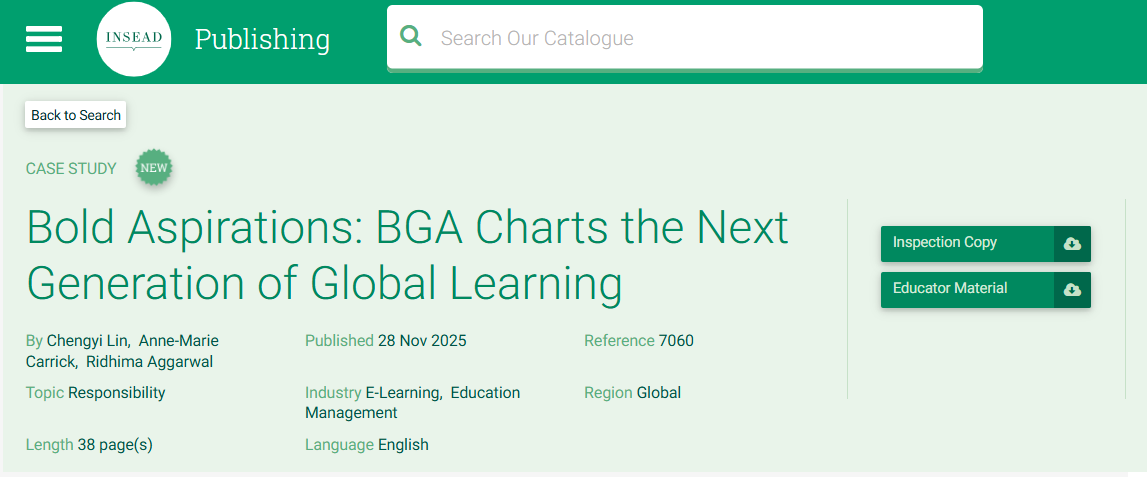
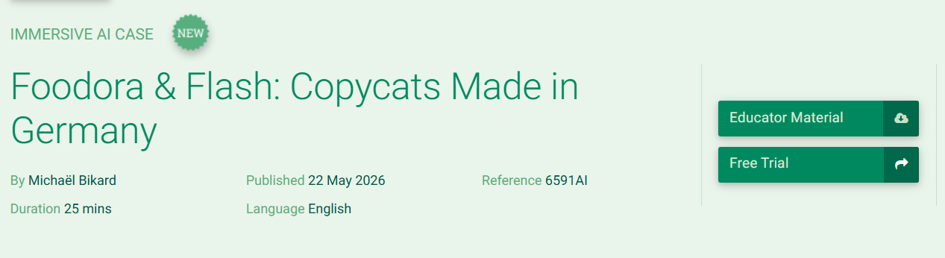
  • Once logged in, go to the product page and click on the Educator Material button to download the teaching note.

Educator Material buttton

For more details on account setup and verification, check the “Manage my account” section.

What are LiveCases?

LiveCases are designed to make learning come alive. They are interactive digital experiences that immerse participants in real-world challenges through multimedia, simulations and decision-making exercises. Instead of reading about a situation, participants

LiveCases are designed to make learning come alive. They are interactive digital experiences that immerse participants in real-world challenges through multimedia, simulations and decision-making exercises.

Instead of reading about a situation, participants step into it, make decisions, and experience the impact. Making learning practical, engaging, and memorable.

  • Flexible: Use LiveCases in person or online, synchronously or asynchronously.
  • Accessible: Works on desktop, tablet, or mobile. 

Explore the catalogue: Browse LiveCases.

Instructor tools at a glance

LiveCases offer a powerful instructor interface designed for ease and impact: Prepare and review content: Explore episodes and decision trees before your session. Customise settings: Control auto-release, visibility of scores, certificates and participant

LiveCases offer a powerful instructor interface designed for ease and impact:

  • Prepare and review content: Explore episodes and decision trees before your session.
  • Customise settings: Control auto-release, visibility of scores, certificates and participant experience.
  • Track and debrief: Use dashboards to monitor progress, analyse choices and export data.
  • AI insights: Access term frequency and sentiment analysis for text responses to enrich discussions.

Who can access LiveCases?

Educators and PhD students can: Access full teaching resources, including educator materials, free trials and preview options. upon purchase, access instructor dashboard on livecases.com and share participant access links with students. Corporate tra

Educators and PhD students can:

  • Access full teaching resources, including educator materials, free trials and preview options.
  • upon purchase, access instructor dashboard on livecases.com and share participant access links with students.

Corporate trainers can:

  • Purchase LiveCases for corporate training purposes.
  • upon purchase, access educator materials, instructor dashboard on livecases.com and share participant access links with participants.

Students and participants can join the experience through a participant access link provided by the instructor or trainer.

How do I purchase a LiveCase?

Purchase is simple: Navigate to Catalogue → Digital Tools → LiveCases. Select your LiveCase and add it to the cart. Complete the checkout process on the Cart page: Select the appropriate teaching License Type and Course Type: LiveCases are available

Purchase is simple:

  • Navigate to CatalogueDigital ToolsLiveCases.

  • Select your LiveCase and add it to the cart.

  • Complete the checkout process on the Cart page:

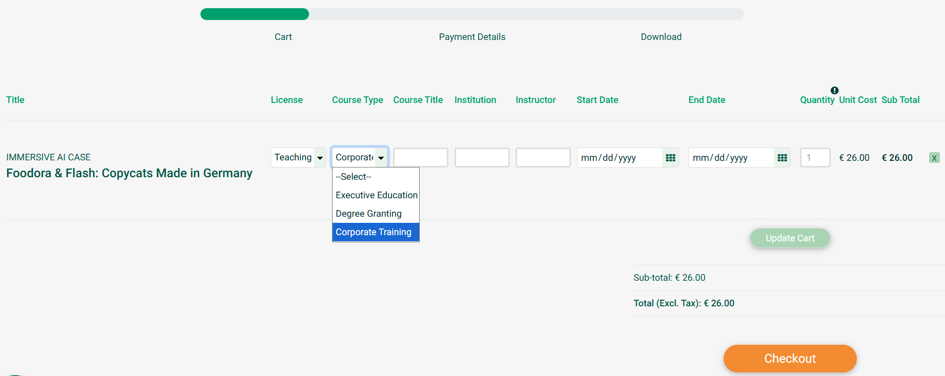
    • Select the appropriate teaching License Type and Course Type: LiveCases are available for teaching or corporate training purposes only. They cannot be purchased for individual use.
    • Indicate the Quantity: One copy must be purchased for each participant.
    • A minimum of 5 copies is required for teaching licenses.

IMPORTANT: Only one LiveCase can be purchased per order. For multiple LiveCases, you will need to place separate orders for each LiveCase.

Check-out page

How is pricing determined?

Pricing varies on license type (Degree, Executive, Corporate Training) and LiveCase duration. Prices are displayed on the product detail page and during checkout.

How do I access a purchased LiveCase?

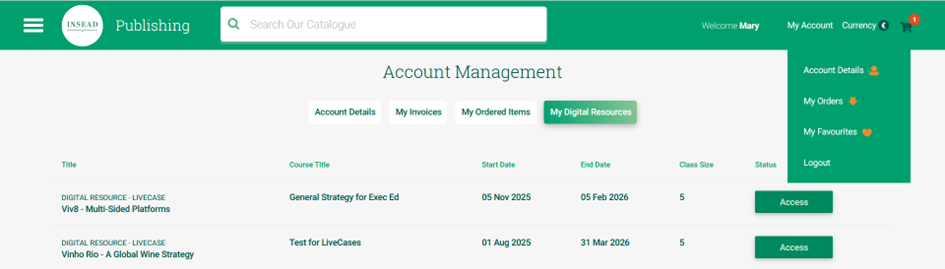
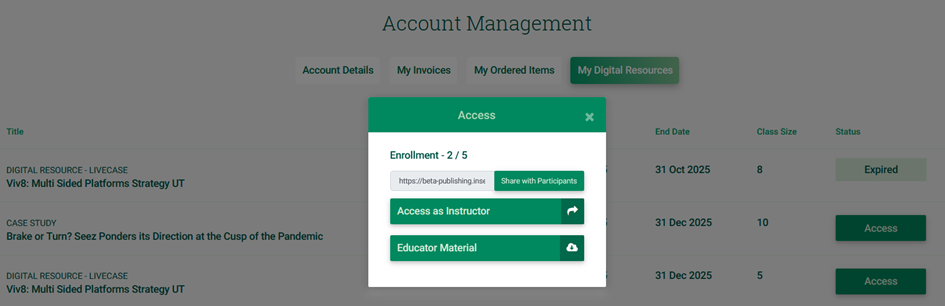
Once your order is confirmed: Log in to your INSEAD Publishing account and go to My Account → My Digital Resources:https://publishing.insead.edu/my-digital-resources. Click Access, then Access as Instructor to launch the LiveCase and open the instructor da

Once your order is confirmed:

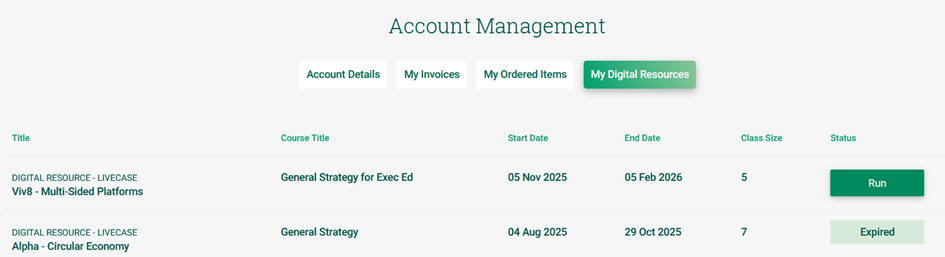
  • Log in to your INSEAD Publishing account and go to My AccountMy Digital Resources:https://publishing.insead.edu/my-digital-resources.
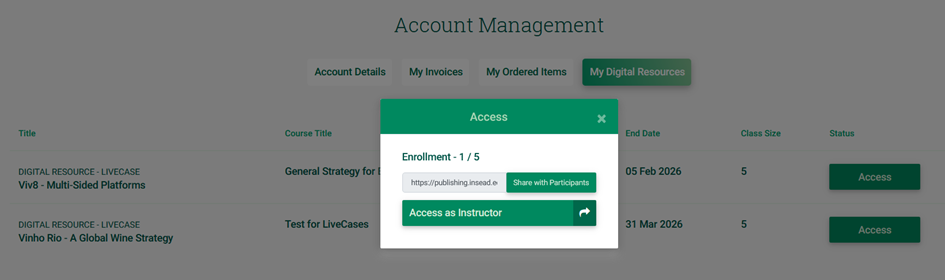
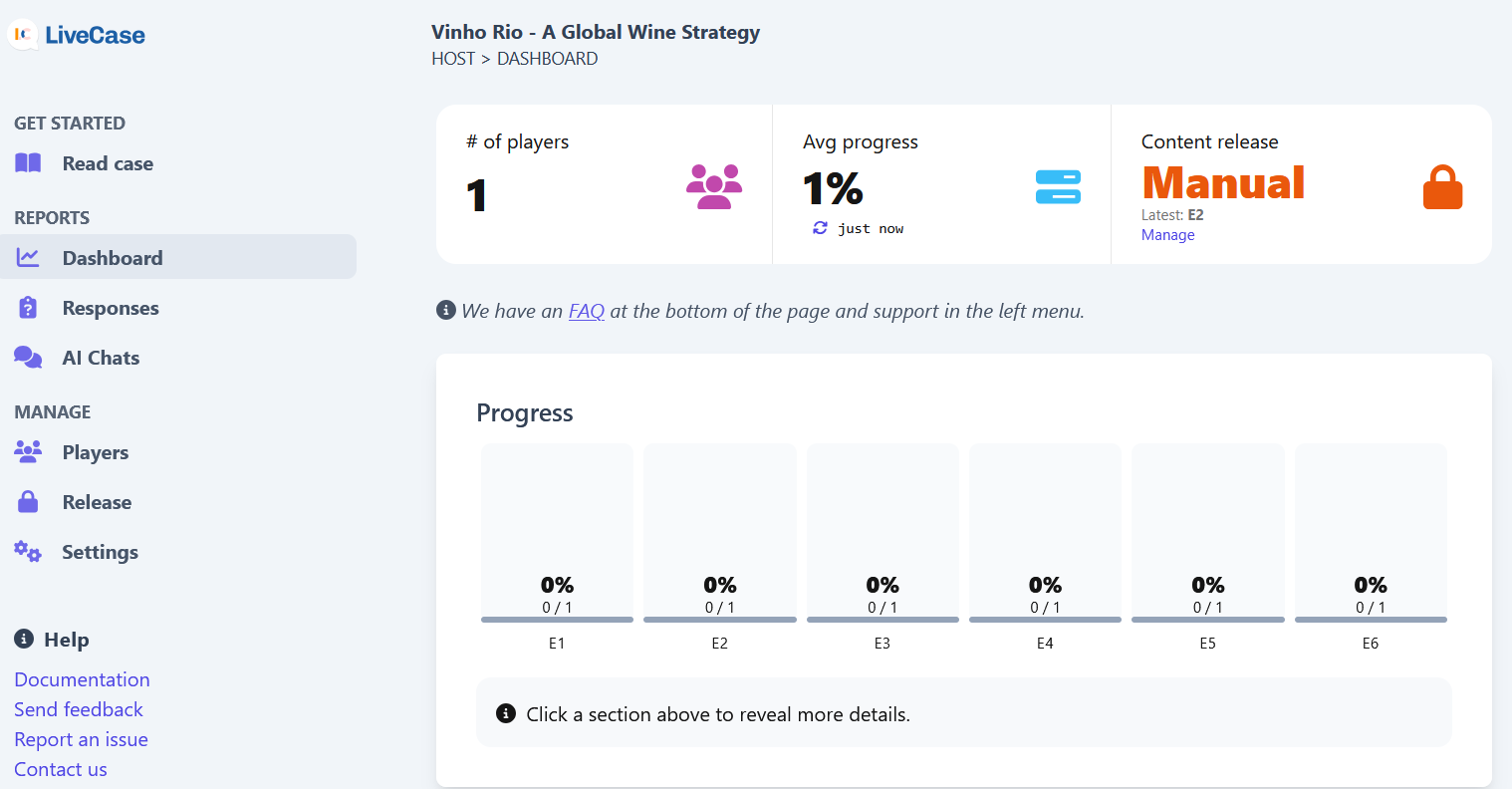
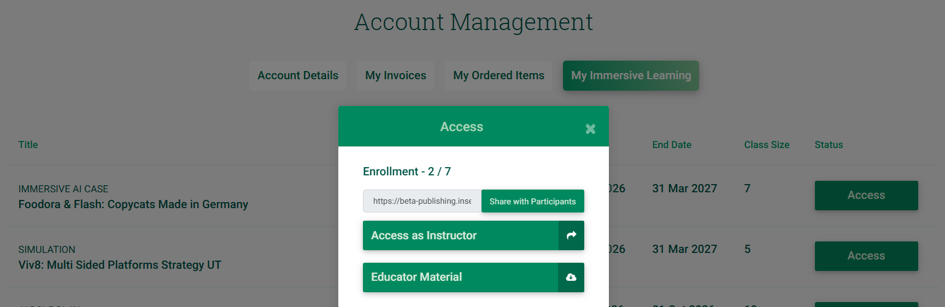
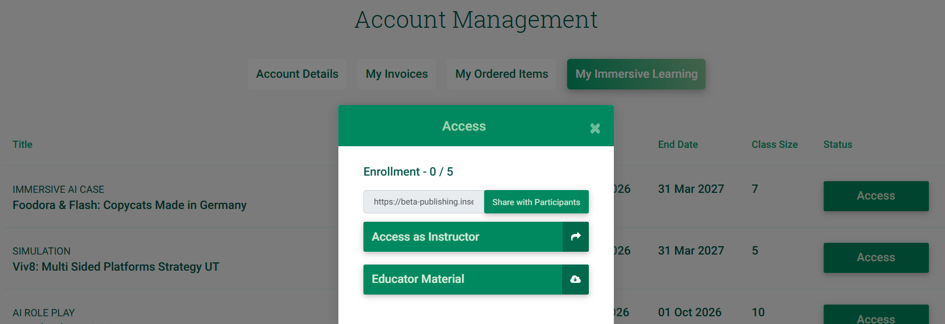
  • Click Access, then Access as Instructor to launch the LiveCase and open the instructor dashboard on our partner platform (livecases.com).
  • Access remains valid until the course end date specified in your order.

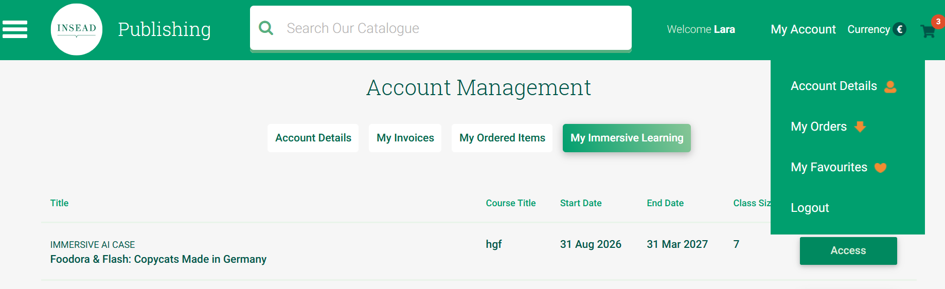
My Digital Resources


Access pop-up


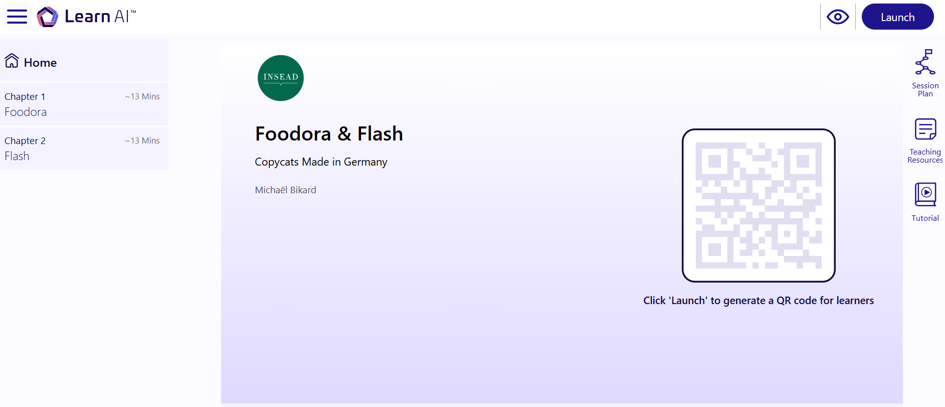
Educator dashboard

How do I share a purchased LiveCase with participants?

Educators and trainers can share the participant access link once a LiveCase has been purchased. To proceed: Go to My Digital Resources: https://publishing.insead.edu/my-digital-resources. Click Access, then Share with Participant to copy the link.

Educators and trainers can share the participant access link once a LiveCase has been purchased. To proceed:

  • Go to My Digital Resourceshttps://publishing.insead.edu/my-digital-resources.

  • Click Access, then Share with Participant to copy the link.

  • Share the link with participants via your institutional learning platform or by email.

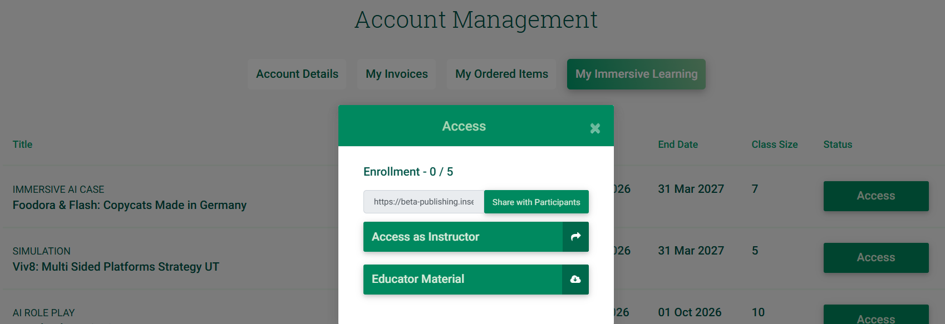
  • You can monitor the number of enrolled participants and remaining seats in the access pop-up above the participant access link. 

Access pop-up

Every time a new participant accesses the LiveCase via the participant access link, the number of enrolled participants will be updated.

Can I add more seats?

To add more seats for the same course:

Only the original purchaser can add seats to the LiveCase.

My Invoices page

How do participants access LiveCase?

It is easy for participants: Click the link provided by your educator or trainer, then click Access LiveCase. Log in to your account using the pop-up, or sign up if you don’t have an account. Once your account is created, click the participant access

It is easy for participants:

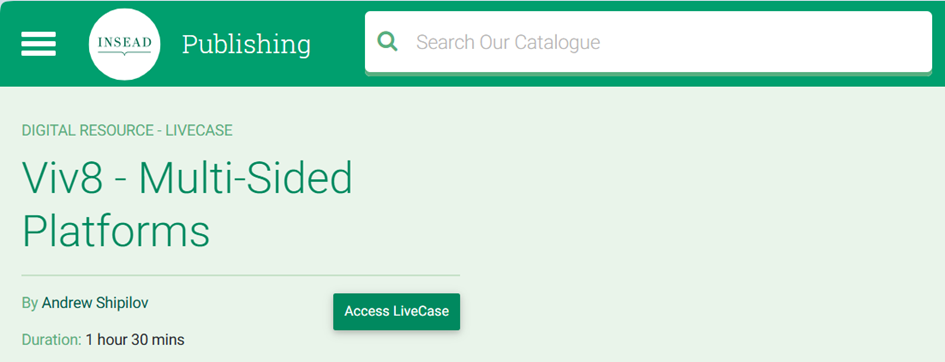
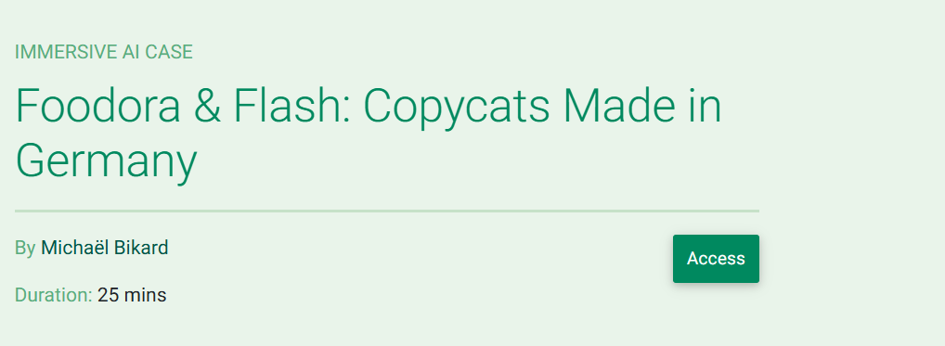
  • Click the link provided by your educator or trainer, then click Access LiveCase.

Access LiveCase page

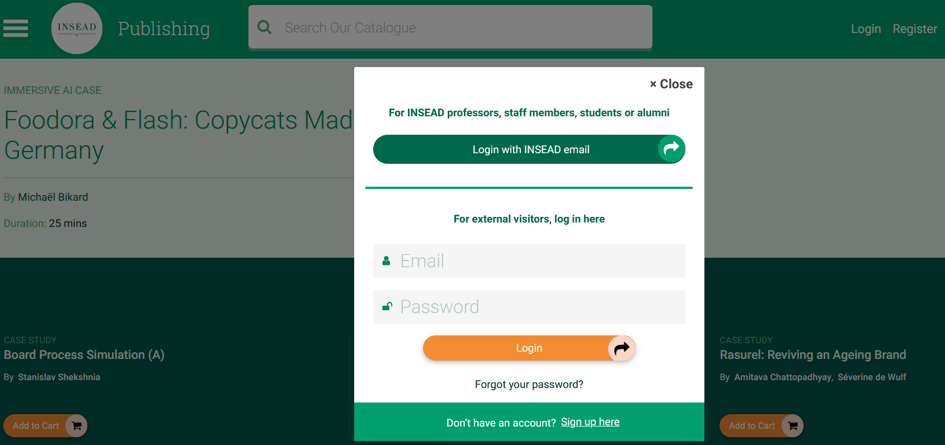
  • Log in to your account using the pop-up, or sign up if you don’t have an account. Once your account is created, click the participant access link provided by your educator or trainer. 

Login pop-up

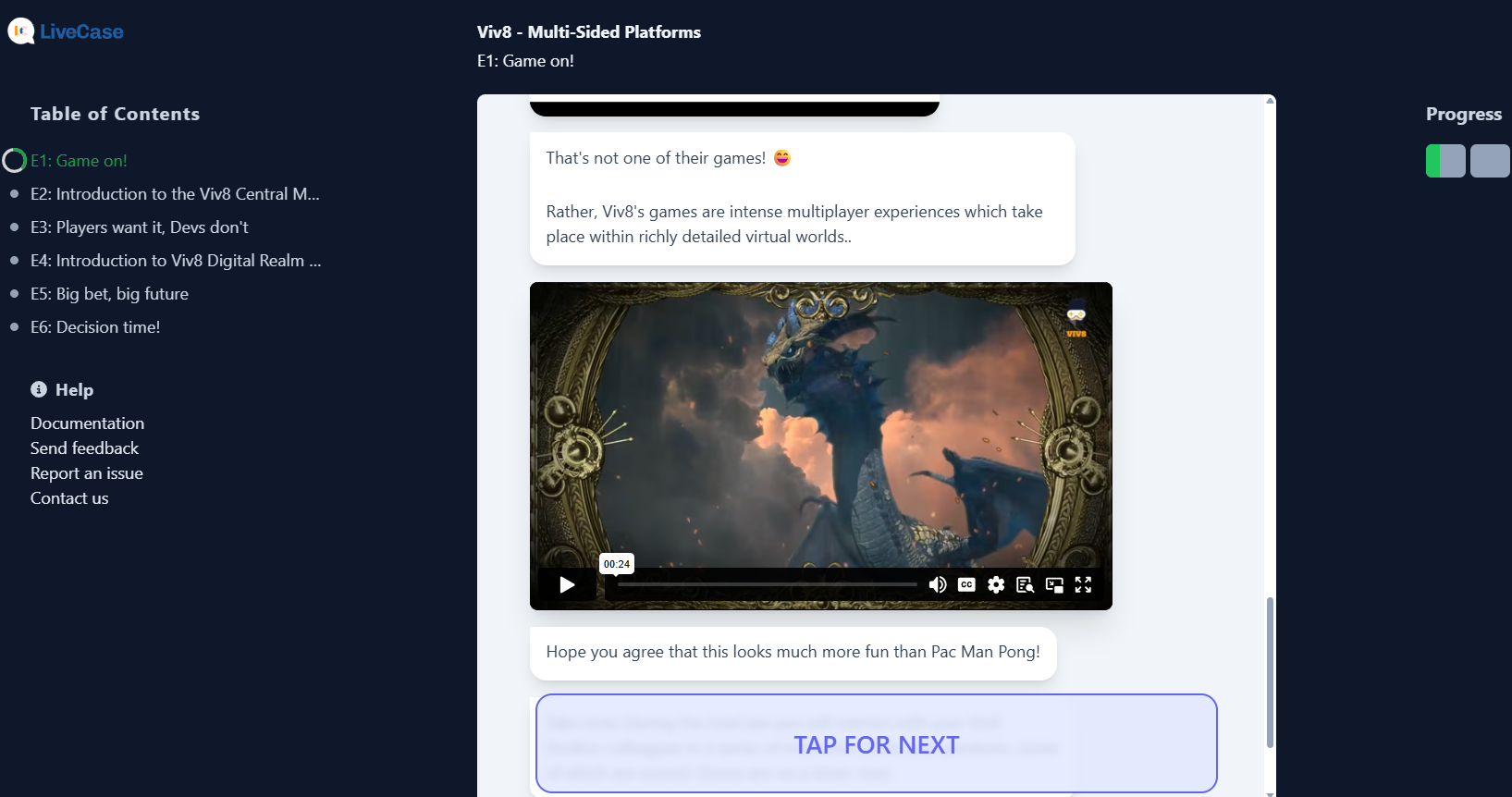
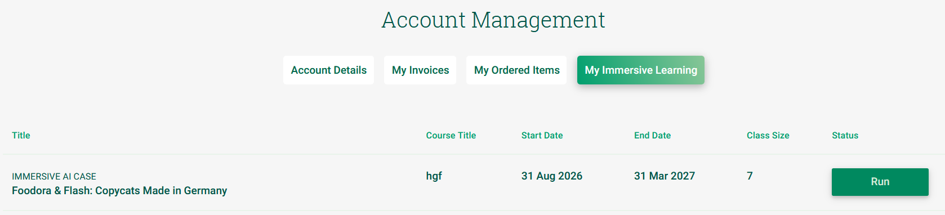
Run for participants


Participant dashboard

Your access remains valid until the end of the course date.

What additional resources are available?

Free trials: Registered educators and PhD students can preview LiveCase in Educator and Student via the Free Trial button on the LiveCase detail page. You will be redirected to the instructor and learner dashboards on livecases.com Educator materials: T

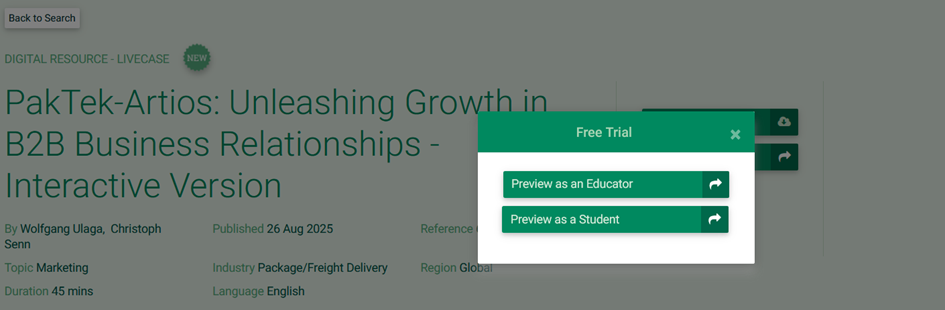
  • Free trials: Registered educators and PhD students can preview LiveCase in Educator and Student via the Free Trial button on the LiveCase detail page. You will be redirected to the instructor and learner dashboards on livecases.com

Free Trial pop-up

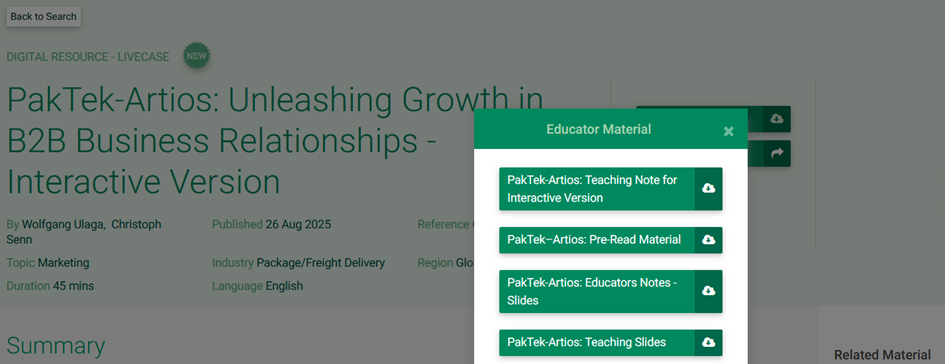
  • Educator materials: Teaching notes, slides and other supplementary materials are available for registered educators and PhD students via the Educator Material button on the LiveCase detail page.

Educator Materials pop-up

Corporate trainers can access the educator materials when they purchase a LiveCase:

Educator Materials for corporate trainers

Technical features for instructors on livecases.com

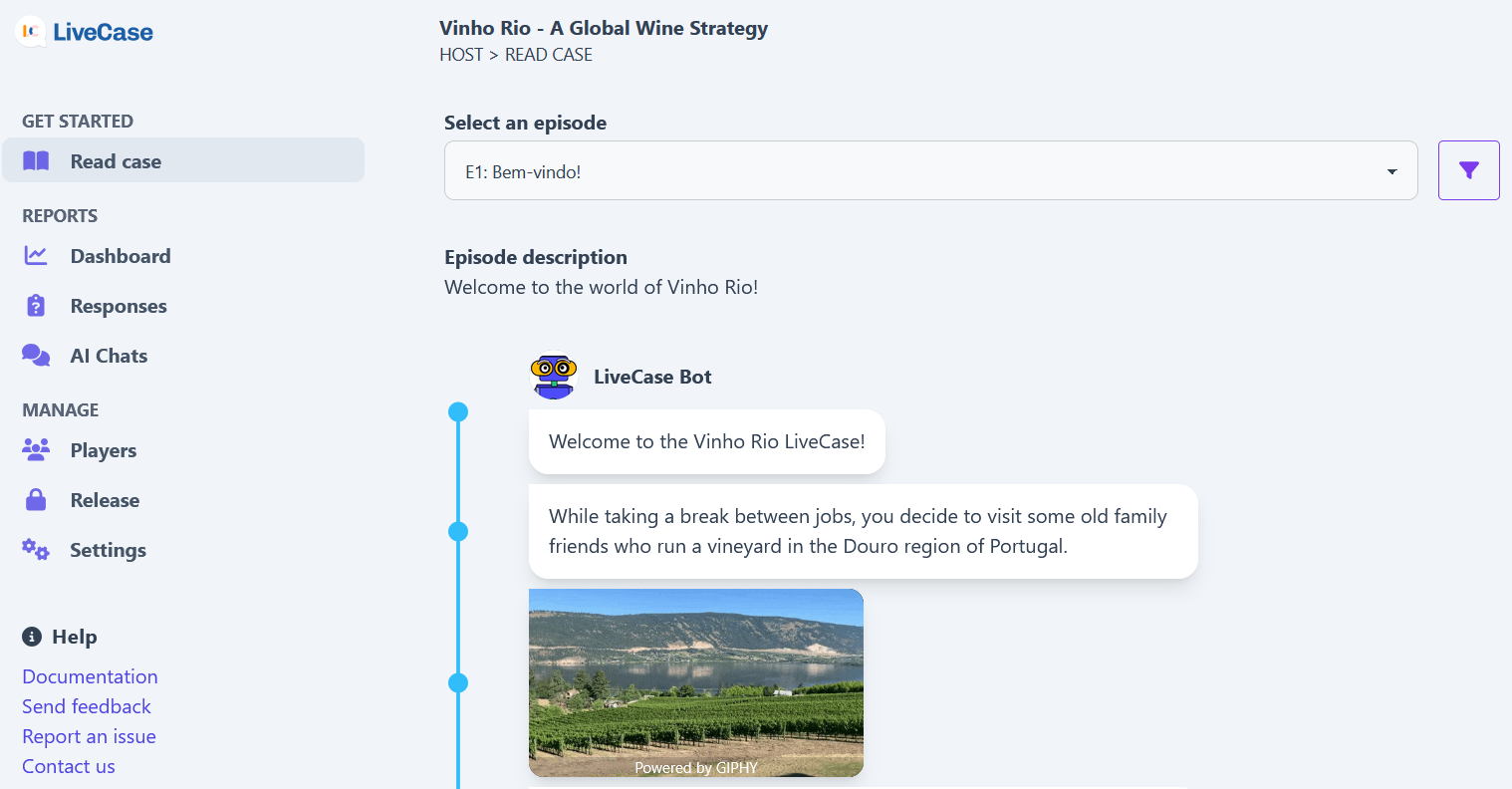
You can review the content ahead of your course by clicking the 'Read case' page located in the left menu of the hosted session and selecting the season and episode in the dropdown menu. In the image above, the blue line represents the main sequence of the

You can review the content ahead of your course by clicking the 'Read case' page located in the left menu of the hosted session and selecting the season and episode in the dropdown menu.

Read Case

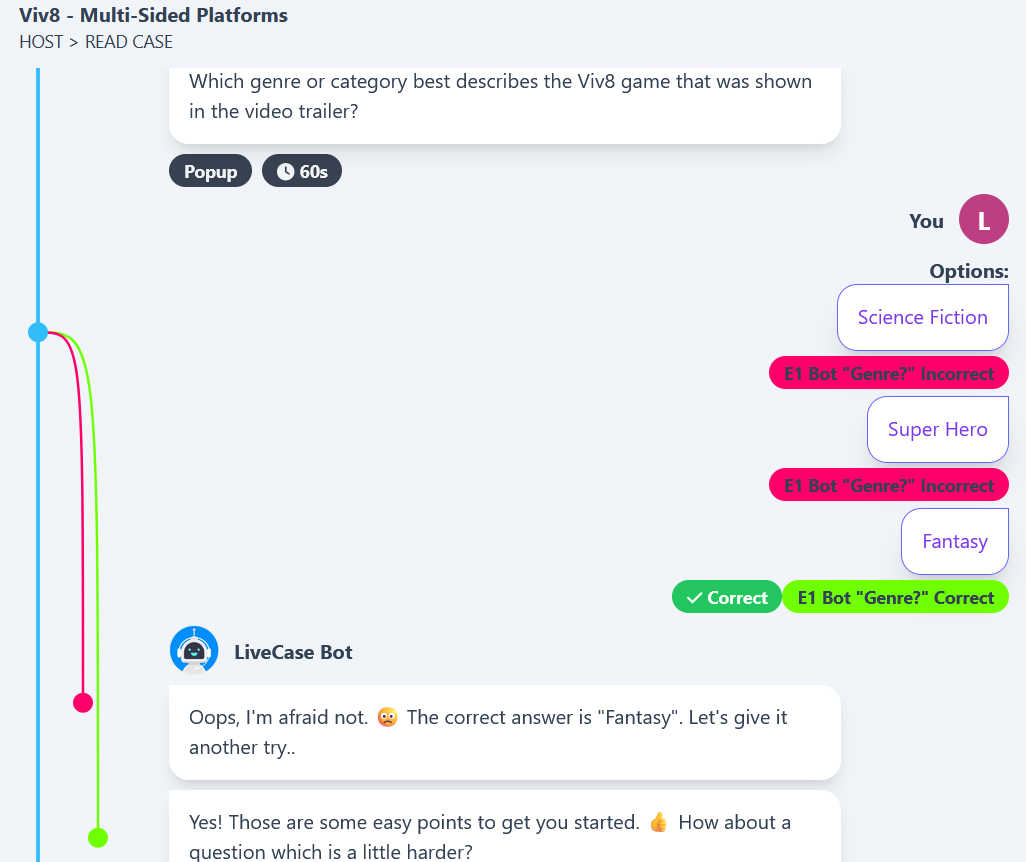
In the image above, the blue line represents the main sequence of the story. Colored lines going to the right of that blue line then illustrate the option choices the Learners have that the Author prepared in advance (i.e., decision trees displayed in 2D with the story developing linearly downward).

In the image below, we show that when a Learner chooses one of the options, only the follow-up content for that choice will be displayed. This can continue as far as the Author prepared it, i.e., decisions branching from previous decisions. You can see the 'Badge' the Learner receives, which records their choice. Additionally, information is displayed about how these choices may affect the 'Characteristics'.

Read case - multi choice

Settings on livecases.com

The settings page allows you to configure the session settings and preferences. You can control the following: Auto-release: Turn on/off auto-release. This enables, or disables, the automatic release of episodes. Individual experience: Turn on/of

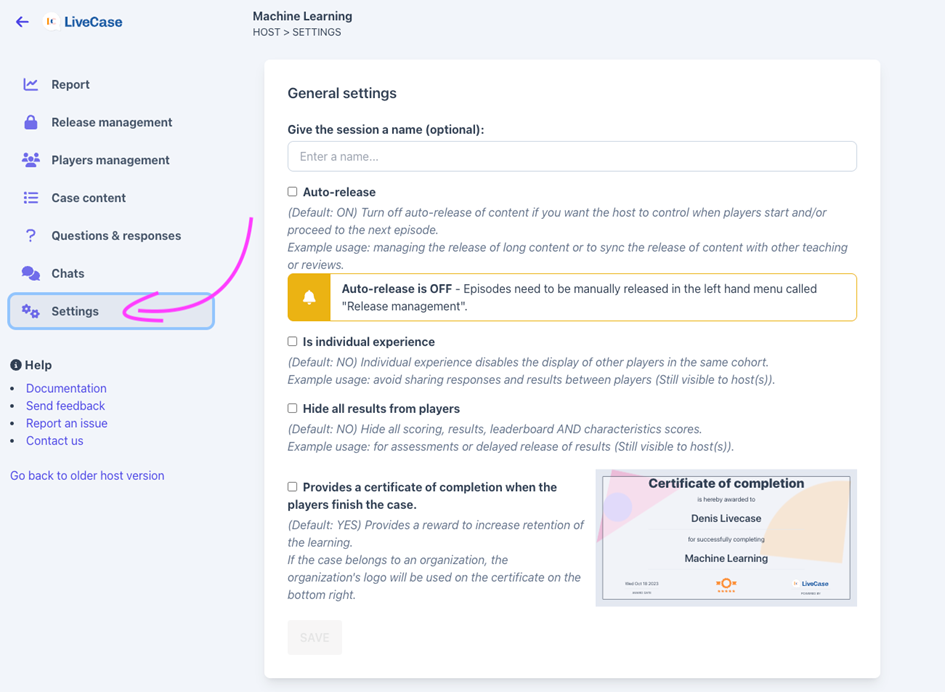
The settings page allows you to configure the session settings and preferences. You can control the following:

  • Auto-release: Turn on/off auto-release. This enables, or disables, the automatic release of episodes.
  • Individual experience: Turn on/off individual experience. This enables, or disables, the ability of the players to view each other in the course.
  • Hide all results from players: Turn on/off the ability for players to see their scores. This can be useful if you want to keep the scores hidden until the end of the course.
  • Certificate: Turn on/off the certificate. This enables, or disables, the ability for players to receive a certificate at the end of the course that they can download or share on social media.

Settings

Report & debrief on livecases.com

The LiveCase web application, built by Educators for Educators, comes equipped with powerful and intuitive debriefing tools as standard that work on desktops, tablets, or smartphones.

Leaderboard and scores on livecases.com

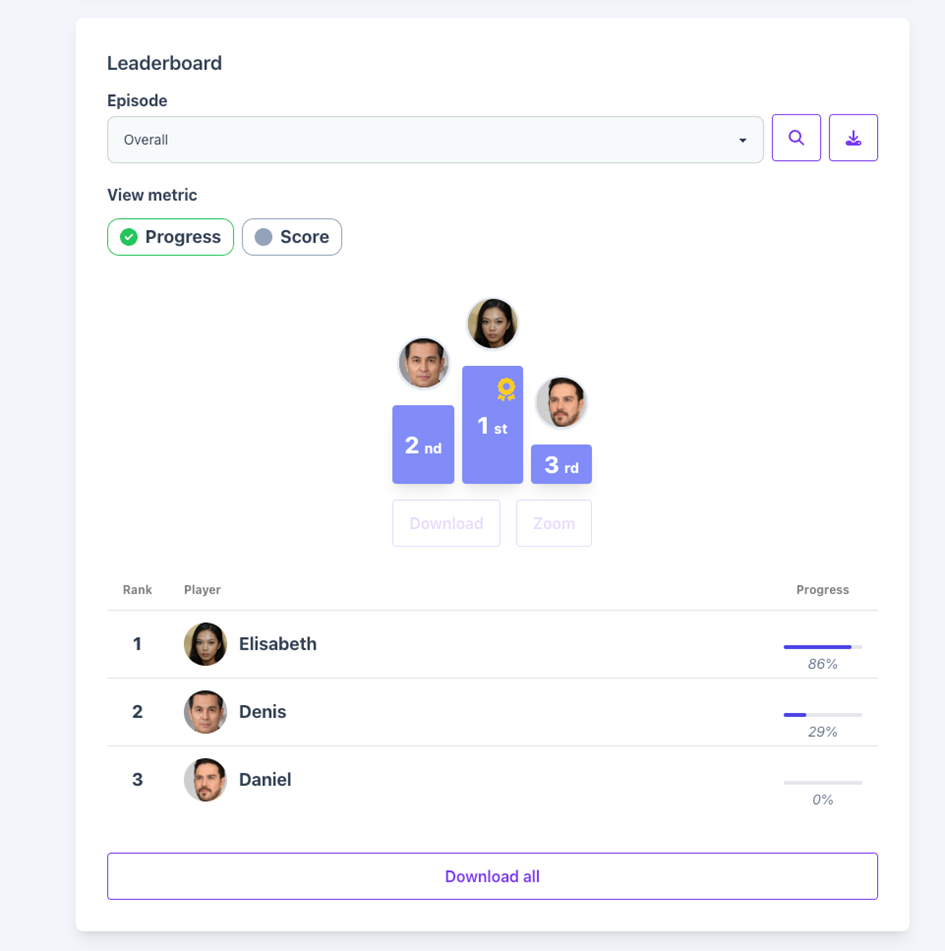
In the 'Dashboard' of a hosted session, you can view the Leaderboard to see participants 'Scores' or 'Characteristics' across seasons and episodes. You can also use the filter and search functions to find specific participants or data. You can click indivi

In the 'Dashboard' of a hosted session, you can view the Leaderboard to see participants 'Scores' or 'Characteristics' across seasons and episodes.

You can also use the filter and search functions to find specific participants or data.

Leaderboard

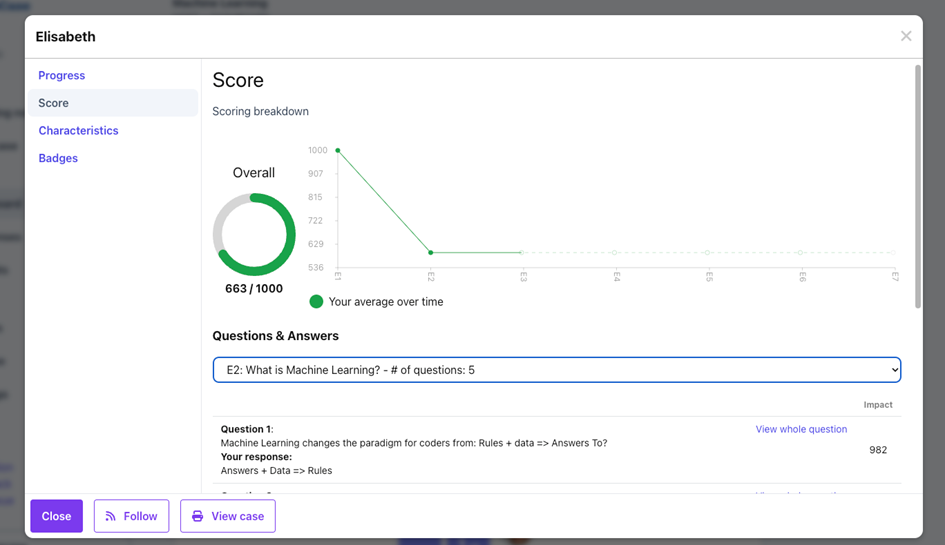
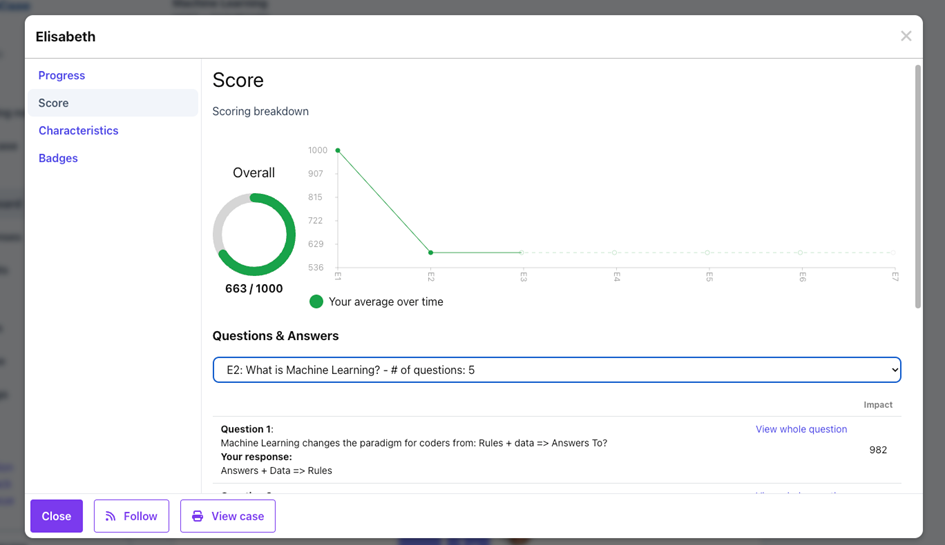
You can click individual Scores or Characteristics per Learner to check their evolution and drill down into the details per season, episode, and question.

Scores view

Release management on livecases.com

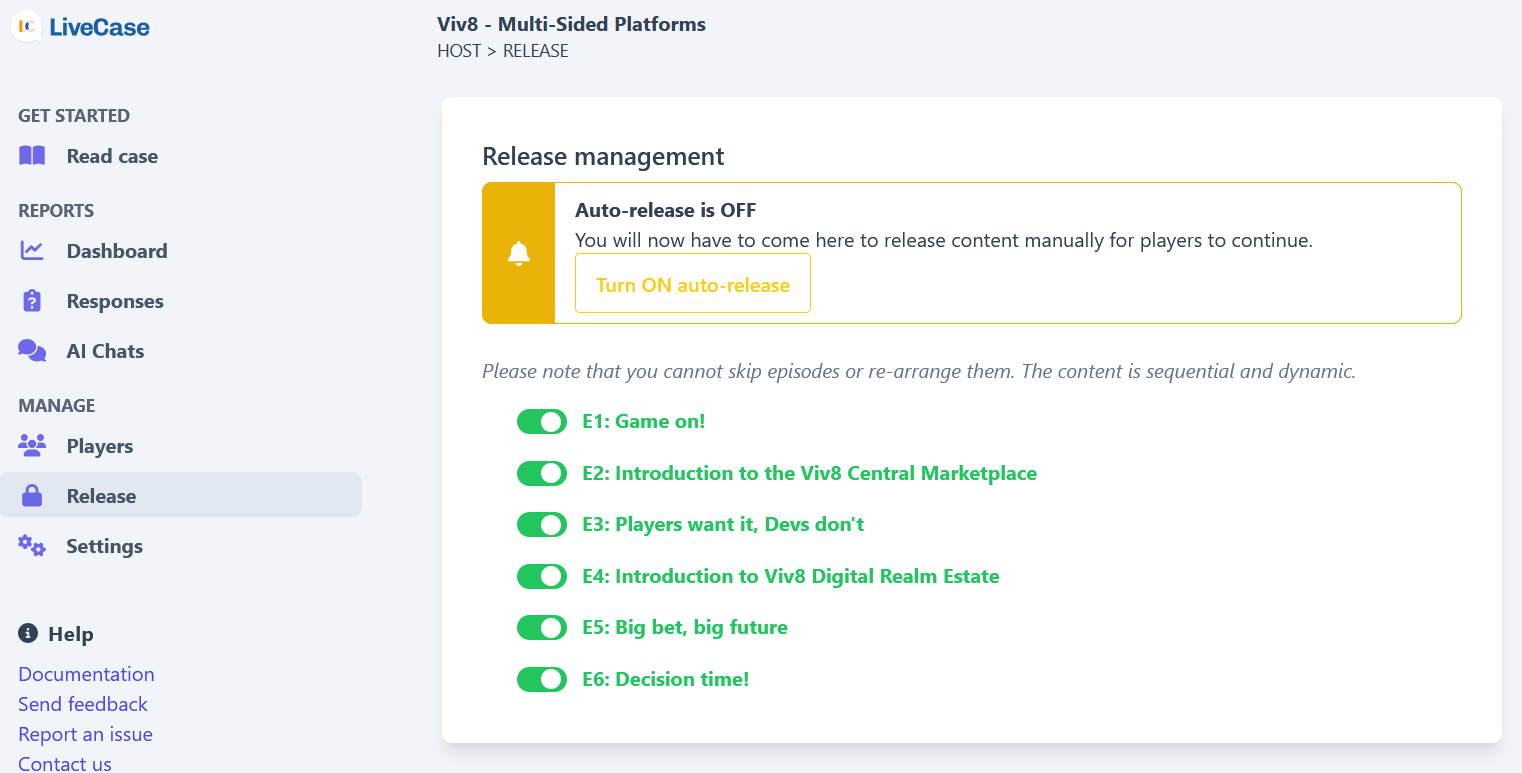
You can allow players to play all of the content right away, or you can release content episode by episode. By default, content is set to "Auto-release". This means that all of the content is released automatically. If you would like to turn this off, go to

You can allow players to play all of the content right away, or you can release content episode by episode.

By default, content is set to "Auto-release". This means that all of the content is released automatically. If you would like to turn this off, go to the "Release" section (left navigation).

Release

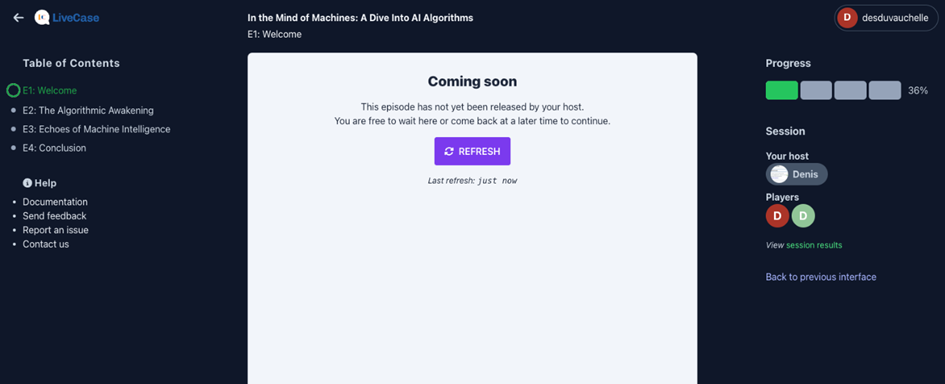
If you turn off auto-release, you will need to return to the "Release" page and release episodes by using the toggle switch next to each episode when you need them, otherwise the player will be redirected to a "Coming soon" holding page. This is what players view while they are waiting for content to be released:

Player view - Coming soon

Please note:

  • You cannot skip episodes: Due to the dynamic nature of the platform, the content must be played sequentially, and you can not skip episodes. Ex: If you release episodes 3 and 4, but episode 2 is not released, they will be redirected to a holding page.

  • You can turn off episodes again: If some players have started an episode you "un-release", they will no longer be able to progress until you release it again. Their progress will be saved, so once you release it again, they will be where they were before.


You can click individual Scores or Characteristics per Learner to check their evolution and drill down into the details per season, episode, and question.

Scores

Review participant/ learner choices on livecases.com

Once the Learners complete the LiveCase, you can review their choices at any time and use the results to debrief on key decisions. All data can be downloaded in CSV format. To do so, click the 'Responses' tab of the hosted session then select the Season and

Once the Learners complete the LiveCase, you can review their choices at any time and use the results to debrief on key decisions. All data can be downloaded in CSV format.

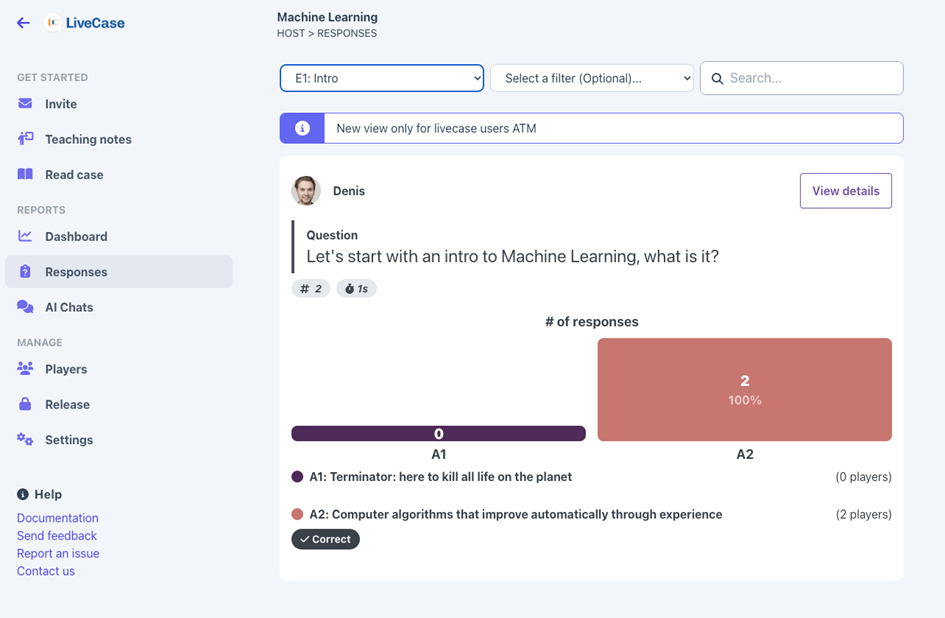
To do so, click the 'Responses' tab of the hosted session then select the Season and/or Episode you wish to review.

Responses tab

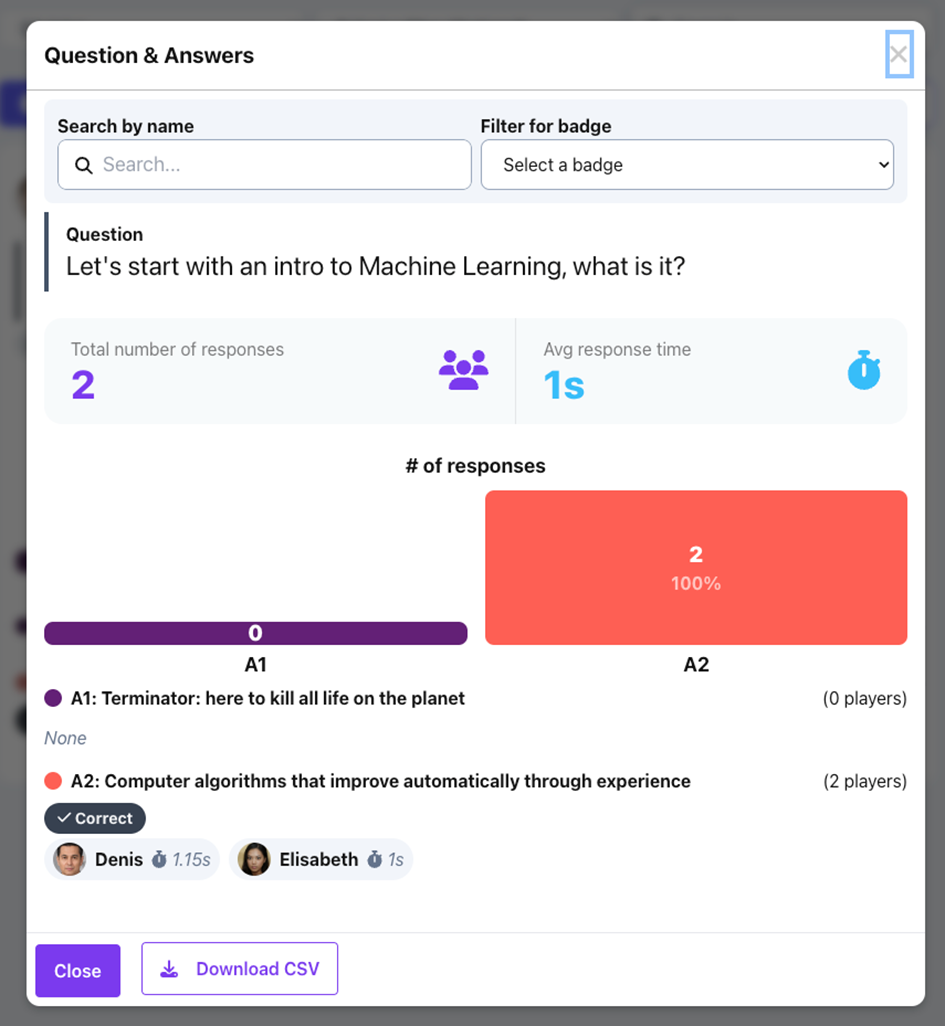
Then scroll down to the question you wish to check and click it to display the results. This provides valuable debrief insights, including who answered what and how long they took to answer.

Learner choice review

ML/AI Text Analysis: For text answers, we provide term frequency and sentiment analysis scores, which can support research and debriefing. Term frequency, allows you to examine how language is used and how it evolves. Sentiment scores can give a sense of whether the context aligns with the response. Additionally, AI generated extraction tools help you better understand the content of participants’ responses.

Need help?